
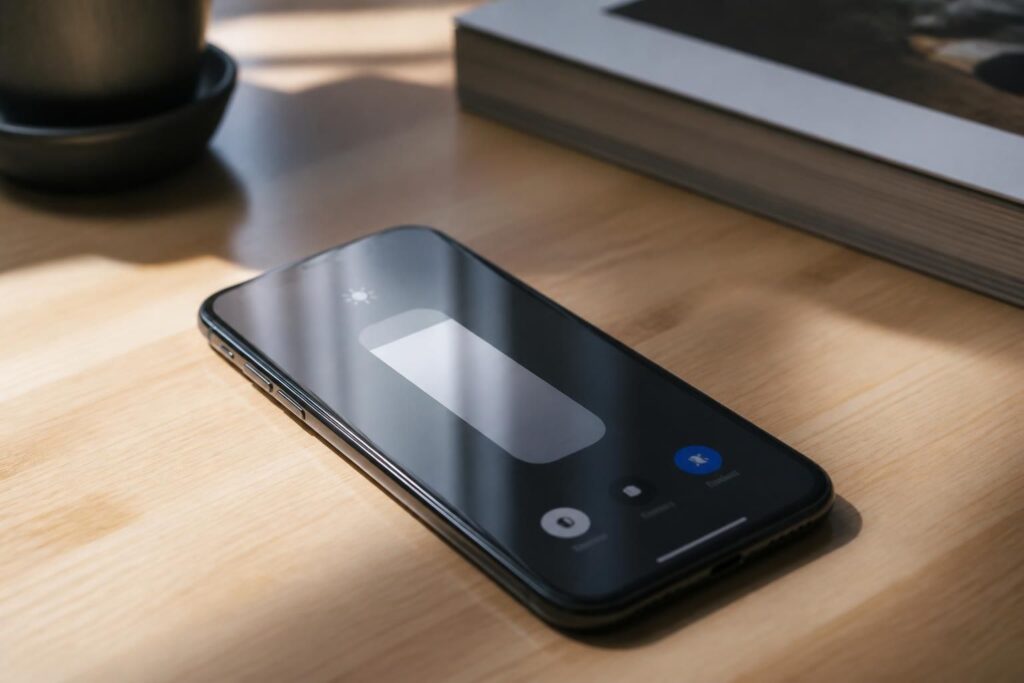
What Is the iPhone Brightness Bug?
If your iPhone screen keeps dimming unexpectedly, brightening on its own, or refusing to respond to manual adjustments, you’re not alone. This is a well-documented issue that affects a wide range of iPhone models, from older devices running outdated iOS versions to newer models after a recent software update. The behavior can range from mildly annoying to genuinely disruptive, particularly if you use your phone outdoors or in low-light environments.
The good news is that this problem is almost always software-related, which means you don’t need to visit an Apple Store or replace any hardware. A few targeted settings changes are usually enough to restore normal behavior.
The Most Common Causes Behind the Issue
Before diving into fixes, it helps to understand what’s actually triggering the problem. Several iOS features interact with screen brightness simultaneously, and when they conflict, the result is erratic behavior.
- Auto-Brightness: This feature uses the ambient light sensor to adjust brightness automatically. When miscalibrated, it can cause the screen to dim or brighten at inappropriate times.
- True Tone: Available on newer iPhones, True Tone adjusts color temperature based on your environment. It can sometimes be mistaken for a brightness change.
- Night Shift: Designed to reduce blue light in the evening, Night Shift can make the screen appear dimmer than expected.
- Low Power Mode: When activated, this mode reduces screen brightness to conserve battery, which can catch users off guard.
- Attention-Aware Features: On Face ID iPhones, the screen dims when the device detects you’re not looking at it. This is a feature, but it often feels like a bug.
Identifying which of these is responsible for your issue will make the fix much more straightforward.
Step-by-Step Fixes to Try Right Now
Start with the simplest solutions and work your way through the list. Most users find that one of the first two steps resolves the issue entirely.
- Reset Auto-Brightness calibration: Go to Settings → Accessibility → Display & Text Size and toggle Auto-Brightness off, then back on. This forces the sensor to recalibrate.
- Disable Attention Aware Features: Navigate to Settings → Face ID & Passcode and turn off Attention Aware Features. This stops your screen from dimming when you glance away.
- Check Night Shift and True Tone: Both can be found in Settings → Display & Brightness. Try disabling them temporarily to see if the erratic behavior stops.
- Turn off Low Power Mode: Head to Settings → Battery and switch off Low Power Mode if it’s active.
- Update iOS: An outdated operating system is a common source of display bugs. Go to Settings → General → Software Update and install any available updates.
- Restart your iPhone: A simple restart clears temporary system processes that may be interfering with display management.
When a Reset Becomes Necessary
If none of the steps above resolve the issue, the problem may be rooted in a deeper software conflict introduced by a corrupted settings file or a failed update. In this case, resetting your iPhone’s settings — without erasing your data — is worth considering.
Go to Settings → General → Transfer or Reset iPhone → Reset → Reset All Settings. This will restore all system preferences to their defaults, including display settings, without touching your photos, apps, or messages. You will need to re-enter Wi-Fi passwords and reconfigure some preferences, but it’s a relatively painless process that solves a surprising number of persistent bugs.
“Most brightness-related issues on iOS are caused by conflicting accessibility and display settings, not hardware failure. A targeted reset of system preferences resolves the problem in the vast majority of cases.” — iOS developer community feedback
Hardware Could Be the Culprit in Rare Cases
While the overwhelming majority of brightness bugs are software-driven, there are situations where the ambient light sensor itself may be physically obstructed or damaged. If you’re using a thick case or a screen protector that covers the sensor — typically located near the front camera — try removing it and testing the display behavior again.
Physical damage from drops or liquid exposure can also impair the sensor. If you’ve recently dropped your phone and the brightness issue started shortly after, it’s worth booking a diagnostic appointment at an Apple Store or authorized repair center. Apple’s built-in diagnostics can tell you within minutes whether the sensor is functioning correctly.
Preventing the Bug from Coming Back
Once you’ve resolved the issue, a few habits will help you avoid running into it again. Keep your iPhone updated, as Apple regularly patches display-related bugs in minor iOS releases. Avoid using third-party screen protectors that are not explicitly labeled as sensor-compatible. And if you notice the problem returning after a specific app update, check whether that app has been granted permission to adjust display settings — some utilities and accessibility apps can interfere with system brightness controls.
Managing your display settings proactively rather than leaving everything on auto is also a good practice. Understanding what each feature does gives you much more control over your screen’s behavior and makes it easier to diagnose issues when they arise.